

Prerequisites
Before adding image inputs to your app, ensure:- Your organization has an enterprise plan
- You have admin access to organization settings (or can request an admin to enable the feature)
- You are the creator or have edit access to the app you want to modify
Enabling Image Inputs at the Organization Level
Organization administrators must first enable image inputs for the entire organization.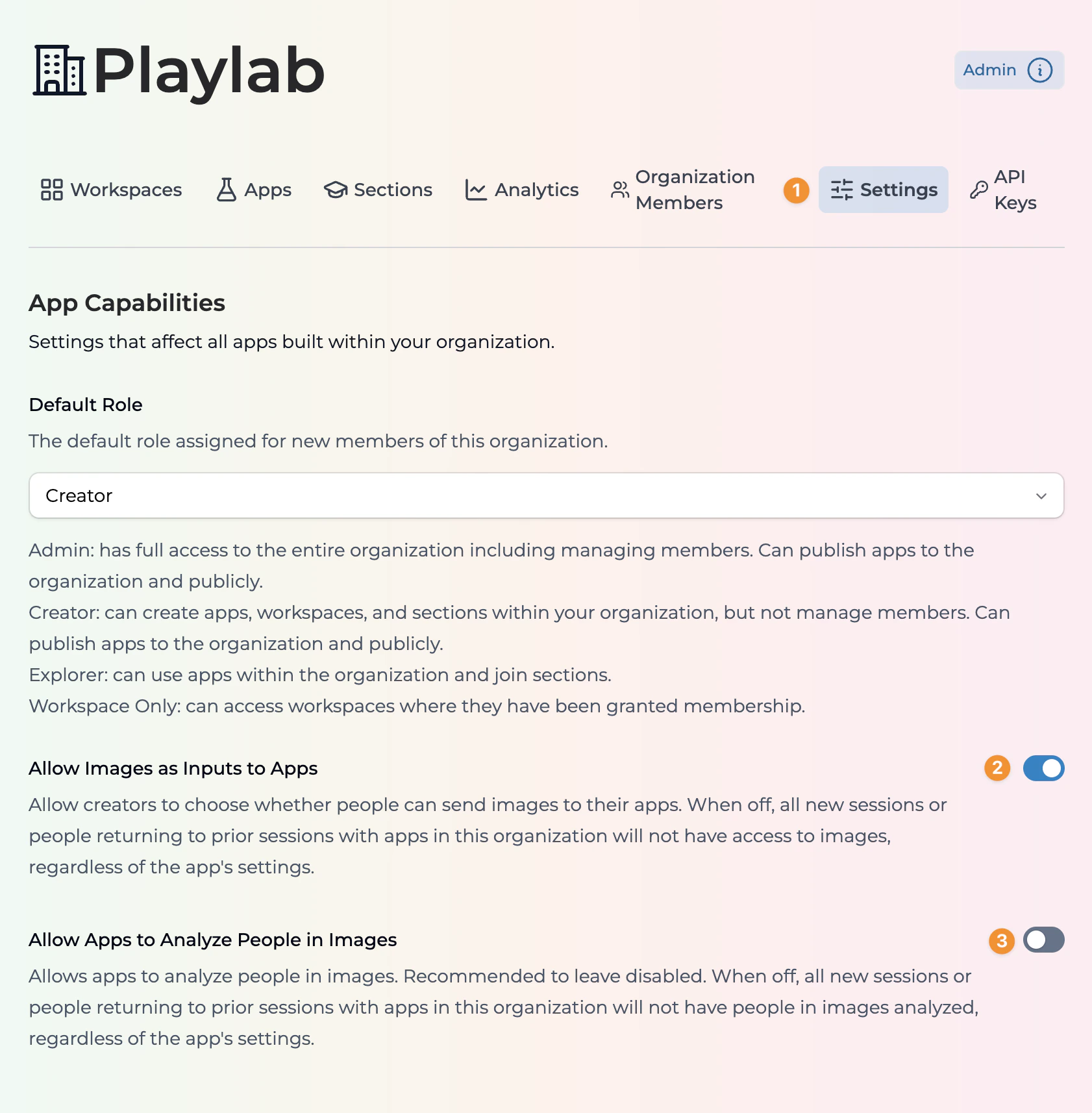
1
Navigate to Organization Settings
- Click on Settings in the top navigation bar
- You will see the App Capabilities section
2
Enable Allow Images as Inputs to Apps
Toggle the image input setting.
- Make sure a Default Role is set for your Organization
- Locate the Allow Images as Inputs to Apps toggle
- Switch the toggle to the ON position (blue)
- The setting is automatically saved for all apps in your organization
3
Optional: Enable People Analysis in Images
Control whether apps can analyze people in images.
- Locate the Allow Apps to Analyze People in Images toggle
- It is recommended to leave this disabled for privacy reasons
- When disabled, new or returning sessions will not have people in images analyzed
When the organization-level setting is off, all new sessions or people returning to prior sessions with apps will not have access to images, regardless of individual app settings.
Enabling Image Inputs for Your App
After the organization setting is enabled, you can turn on image inputs for individual apps.1
Open Your App
Navigate to the app you want to configure.
- Go to your Playlab workspace
- Select the app where you want to enable image inputs
2
Access App Settings
Open the settings panel.
- Click on the Settings icon in the right sidebar
- The Settings panel will open
3
Enable Allow Image Input
Toggle the image input setting for your app.
- Scroll down to find the Allow Image Input toggle
- Switch the toggle to the ON position (blue)
- Note: If this option is grayed out, image inputs are disabled at the organization level
4
Republish Your App
Make the changes active for your users.
- Click the Publish button in the top toolbar
- Confirm the publication
- Image inputs are now available to your app users
Using Image Inputs
Once enabled, users can send images to your app in several ways:- Upload: Click the image icon in the chat input to upload an image file
- Drag and Drop: Drag an image file directly into the chat window
Best Practices
When working with image inputs in your Playlab app:- Be clear about expectations: Tell users what types of images your app can process
- Set appropriate limits: Consider file size and format limitations in your instructions
- Handle errors gracefully: Provide helpful feedback when images cannot be processed
- Privacy considerations: Be transparent about how images are used and stored
- Test thoroughly: Try various image types and sizes before publishing
Frequently Asked Questions
Why is the image input toggle grayed out in my app settings?
Why is the image input toggle grayed out in my app settings?
The image input feature must first be enabled at the organization level by an administrator. Contact your organization admin to enable “Allow Images as Inputs to Apps” in the organization settings.
What image formats are supported?
What image formats are supported?
Playlab supports common image formats including JPG, JPEG, PNG, GIF, and WebP. Check with your organization administrator for any specific restrictions.
Can I disable image inputs after enabling them?
Can I disable image inputs after enabling them?
Yes, you can toggle off image inputs at any time in either the organization settings or individual app settings. Remember to republish your app after making changes.
What happens if I enable people analysis in images?
What happens if I enable people analysis in images?
When enabled, your app can analyze and identify people in uploaded images. However, this is not recommended for privacy reasons and should only be enabled when absolutely necessary for your app’s functionality.
Do image input settings affect existing user sessions?
Do image input settings affect existing user sessions?
When organization-level settings are changed, all new sessions and returning users will be affected. App-level changes require republishing to take effect for users.
Need Support?
If you encounter any issues while setting up image inputs:- Contact us at support@playlab.ai
- Check the Playlab Learning Hub for additional resources